

A website maintenance checklist should help you confirm that the site remains available, important tasks still work, information is accurate, and recovery is possible when something fails. It should also identify who handles each check and what happens when a problem is found.
Begin with the functions the business depends on: contact forms, purchases, bookings, account access or downloads. Then review backups, software updates, permissions, renewals, content, accessibility and performance. A working homepage alone does not confirm that the rest of the website is operating correctly.
This guide covers ongoing maintenance for business websites. Some tasks apply only to sites with particular features, such as checkout or customer accounts. The schedule should reflect your platform, how frequently the site changes and the consequences of an interruption.
Establish Who Is Responsible for Maintenance
Before scheduling checks, confirm who can investigate and correct a problem.
Record responsibility for:
- Hosting, domain registration and DNS settings
- Website software and custom code
- Backups and restoration
- Forms, booking systems and payment integrations
- Content accuracy and publishing
- Administrative access
- Monitoring and incident response
DNS settings connect a domain name to services such as the website and business email. Changes to these settings deserve particular care because they can affect more than the public pages.
For each area, identify a primary contact, an escalation route and any limits on support. If a provider handles maintenance, confirm which tasks are included rather than assuming that hosting support covers the entire website.
Keep this record in a location accessible to authorized staff during an outage. A support document stored only inside the affected website may be unavailable when needed.
If account control or documentation is still unresolved, complete the website handover checklist before relying on an ongoing maintenance arrangement.
Choose a Review Schedule That Matches the Website
The following schedule is a starting framework, not a universal requirement. Increase the frequency where transactions, frequent publishing or service interruptions make delayed detection costly.
| Review trigger | Suggested checks |
|---|---|
| Ongoing monitoring | Website availability, certificate warnings, backup failures and relevant service alerts |
| After a significant change | Affected pages, forms, mobile layouts, integrations and measurement |
| Weekly review | Important customer tasks, backup results, urgent software notices and unresolved incidents |
| Monthly review | Planned updates, broken links, content accuracy, permissions changes and representative performance checks |
| Periodic deeper review | Recovery testing, accessibility, dependencies, support arrangements and maintenance documentation |
| Before a renewal or business change | Billing details, service ownership, licenses, contact information and affected content |
Do not postpone an urgent security advisory until the next monthly review. Similarly, a change to a form, payment service or booking system should trigger testing when it happens.
Backup frequency needs its own decision. Choose it according to how much newly created information the business could reasonably lose. A schedule suitable for an infrequently edited brochure site may be unsuitable for a store receiving orders throughout the day.
1. Check Availability and Important Customer Tasks
Open representative pages while signed out of the website’s administration system. Include the homepage, a service or product page, an article and the contact page.
Confirm that:
- Pages load without unexpected errors.
- Navigation reaches the intended destinations.
- Images, downloads and embedded resources appear correctly.
- Important content is available on smaller screens.
- The browser does not show certificate warnings.
- Telephone and email links use the correct details.
Monitoring should include more than one URL where different parts of the site depend on different systems. An accessible homepage does not establish that checkout, account access or a booking service is working.
Route alerts to someone who can act on them. Record the affected URL, time, observed behavior and any recent changes before investigating. Check whether the problem can be reproduced on another device or connection rather than treating one failed visit as a confirmed sitewide outage.
Test forms from submission to delivery
Submit a clearly identified test inquiry and follow it through the complete process:
- Enter valid information.
- Check required-field and error behavior.
- Submit the form.
- Confirm the visitor receives the expected message.
- Verify that the inquiry reaches the intended inbox or customer system.
- Confirm that staff can access and respond to it.
A success message on the page is only one part of this test. It does not confirm delivery to the responsible team.
For purchases or bookings, use the provider’s test environment where available. If a production transaction is necessary, authorize it first and document payment, cancellation, refund and record-cleanup arrangements. Avoid entering unnecessary personal information into test submissions.
2. Apply Software Updates Through a Controlled Process
Identify the software your team is responsible for maintaining. On a self-hosted website, this may include the content management system, themes, plugins, application dependencies and server components. A hosted website platform may manage some underlying software while leaving extensions and integrations under your control.
For WordPress, the official update documentation recommends backing up the website before an update.
Use a repeatable process:
- Review the release notes and relevant security notices.
- Confirm that a current backup and recovery method are available.
- Test substantial or compatibility-sensitive changes in staging where practical.
- Apply changes in a sequence that allows faults to be traced.
- Check the affected functions after deployment.
- Record versions, results and any unresolved issues.
A staging environment is a separate copy used for testing before changes reach the live website. Protect it from unauthorized access, and prevent it from sending real customer messages or processing live payments.
Automatic updates can be part of the maintenance plan. Confirm what updates automatically, who receives failure notifications and what checks follow an update. Do not disable them indiscriminately or assume that automation removes the need for monitoring.
If software is no longer supported, assign a replacement or migration decision. Leaving it on an inventory without an owner does not resolve the maintenance problem.
3. Verify Backups and Test Recovery
Review what each backup actually contains. WordPress distinguishes website files from the database; both are needed to restore a typical installation. Its backup guidance explains this distinction.
For your own setup, document:
- Files, databases and configuration included
- Systems or records excluded
- Backup frequency and retention
- Storage location and access permissions
- Failure notifications
- Restoration procedure and responsible person
An external booking system, payment provider or customer database may have separate recovery arrangements. Do not assume that a website backup includes records held by those services.
Keep a protected copy separate from the web server where your platform permits it. WordPress’s backup lesson recommends separate storage so a server problem does not also remove the only backup copy.
Confirm that restoration works
A completed backup job is useful evidence, but a controlled restoration test provides a stronger operational check.
Restore an appropriate backup into an isolated environment. Verify that important pages, administration functions and required data can be recovered. Record the backup used, the outcome and any missing dependencies.
Prevent the restored copy from contacting real customers, sending automated messages or triggering live integrations.
Before a production restore, decide how to preserve orders, inquiries or edits created after the backup. Replacing the live database with an older copy can overwrite newer records. Restoration should follow an approved recovery plan rather than being the default response to every fault.
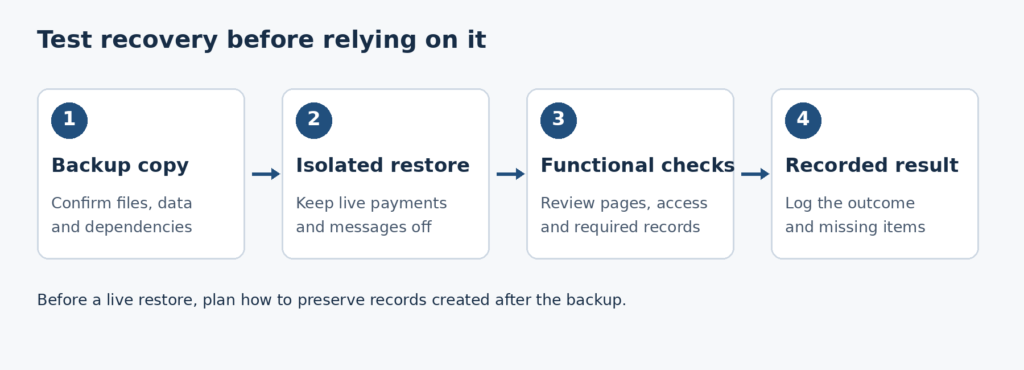
A recovery test verifies the backup in isolation; it does not replace a live recovery plan.
4. Review Administrative Access and Account Recovery
Review permissions when staff or suppliers change, and include access checks in periodic maintenance.
Confirm that:
- Current users have access appropriate to their responsibilities.
- Former staff and suppliers no longer retain unnecessary permissions.
- Recovery email addresses and telephone numbers are current.
- Important accounts have an authorized business owner.
- Shared credentials have been replaced with individual accounts where supported.
- Multi-factor authentication is enabled for important accounts where available.
Multi-factor authentication requires more than one distinct type of authentication factor, such as a password and a device you control. NIST’s authentication guidance explains this distinction.
Store recovery codes and necessary credentials securely. The maintenance log should identify the responsible account owner without containing passwords, secret keys or recovery codes.
Do not remove an unfamiliar account or integration credential without checking its purpose. It may support deployments, backups or another legitimate service. Investigate, confirm the dependency, then revoke or change access through an approved process.
5. Track Renewals and Connected Services
Maintain a register for services whose expiry or billing failure could interrupt the website.
Include applicable items such as:
- Domain registration
- Hosting and email services
- Commercial plugins and themes
- Booking or customer-management subscriptions
- Payment integrations
- Licensed fonts, images and other assets
- Certificate management
Record the billing owner, renewal arrangement, current payment method, notification recipient and action required if renewal fails.
Where a certificate renews automatically, monitor the process and confirm that failure alerts reach someone responsible. An automatic setting should not be treated as evidence that every future renewal will succeed.
Review third-party notices for upcoming changes to supported versions, authentication methods or integrations. Translate relevant notices into dated tasks rather than leaving them in an unattended inbox.
Cancel a service only after confirming that the website no longer depends on it and that any required records have been retained.
6. Keep Published Information Accurate
Prioritize pages containing information that can change independently of the website’s design.
Review:
- Services, product availability and eligibility
- Prices and promotional conditions
- Contact details and opening hours
- Locations genuinely served
- Shipping, returns or booking information where applicable
- Team details and credentials
- Instructions, screenshots and downloadable documents
- Policy descriptions affected by changes in business practice
Compare important facts across the website. A revised service description should not conflict with an old landing page, downloadable brochure or inquiry form.
Verify claims before retaining or expanding them. Check that testimonials, project examples and images remain accurate and appropriately authorized for their current use.
For information requiring business approval, record the responsible reviewer. A maintenance provider can identify a discrepancy, but should not invent an updated price, qualification or policy.
Keep useful pages stable when their information remains accurate. Change content because something needs correction, clarification or expansion—not merely to make every page appear recently edited.
7. Review Mobile Usability and Accessibility
Repeat usability checks after changes to templates, navigation, forms or major visual components.
On representative pages, check whether visitors can:
- Open and close navigation.
- Read content without text overlapping.
- Complete forms and understand errors.
- Identify links and buttons.
- Use controls without unintended actions.
- Reach important information when text is enlarged.
For keyboard testing, move through the page without a mouse. Check that the focused control is visible, the sequence is understandable and menus or dialogs do not prevent normal navigation.
Review headings, form labels, contrast and image alternatives. W3C’s Easy Checks guidance provides a starting point for these checks, while explicitly explaining that they do not constitute a comprehensive accessibility evaluation.
Treat automated results as findings to investigate. A passing tool result does not establish that every person can complete the site’s important tasks.
Record accessibility problems in the same issue system as functional defects, with an owner and a planned response.
8. Check Performance Using Comparable Evidence
Test representative page types rather than measuring only the homepage. Include pages with large images, forms, embedded media or third-party services.
Use similar test conditions when comparing results. Record the page, device profile, connection conditions and recent changes.
The Web Vitals guidance describes loading, interactivity and visual stability through Largest Contentful Paint, Interaction to Next Paint and Cumulative Layout Shift. These measurements assess different aspects of the page experience.
Use controlled tests to investigate specific problems, and consider real-user measurements when sufficient data is available. A single test score should not determine whether an entire website needs rebuilding.
Check recent additions when performance changes:
- Larger images or video embeds
- New fonts
- Additional scripts
- Chat, advertising or tracking tools
- Template changes
- Hosting or delivery configuration
Caching stores reusable copies of content or resources to reduce repeated work. After a relevant change, refresh the affected cache when necessary, then verify what signed-out visitors receive. Routine maintenance does not require clearing every cache indiscriminately.
9. Check Links, Search Access and Measurement
Open important internal links and confirm that they reach the intended pages. Update links to moved destinations where appropriate, and investigate unexpected errors.
After changes to templates, publishing settings or deployment configuration, check that pages intended for public search have not accidentally acquired exclusion instructions.
Google’s noindex documentation explains that the instruction can prevent a crawled page from appearing in its search results. Do not remove deliberate exclusions from private, administrative or other intentionally excluded pages without understanding their purpose.
For deeper investigation of crawling, indexability, canonical signals and sitemap consistency, use the technical SEO audit checklist. Routine maintenance should identify unexpected changes and escalate them rather than recreate a full audit each month.
Verify that measurement still represents completed tasks
After changing forms, checkout, consent settings or tracking tools, test the important actions again.
Check that:
- The task completes successfully.
- The operational record reaches the correct system.
- The intended measurement event is recorded.
- The event is not recorded more often than intended.
- Test activity is identifiable.
Do not equate a button click with a completed purchase or inquiry unless that is explicitly what the measurement represents. Respect the website’s configured consent choices while testing.
10. Record Findings and Escalate Problems
Use a maintenance log that shows evidence and responsibility.
| Field | What to record |
|---|---|
| Date and environment | When the check happened and whether it involved staging or production |
| Page or system | The affected URL, component or service |
| Test | What was checked and how |
| Result | What worked, failed or could not be verified |
| Impact | Which task, information or operation is affected |
| Owner and next action | Who will investigate or correct it |
| Verification | How the resolution was checked |
Use “not applicable” when a feature does not exist. Use “not verified” when access, evidence or a test is missing. Neither should be recorded as a pass.
Prioritize by consequences. Suspected unauthorized access, failed payments, missing inquiries or widespread unavailability generally warrant faster investigation than an isolated cosmetic issue.
When something fails
First establish the scope and assign an incident owner. Preserve relevant error information and recent change records before making further changes.
If the failure follows a deployment, compare it with the recorded changes. A rollback may be appropriate, but confirm its effect on newer data and security fixes first.
For suspected compromise, involve the responsible security or hosting specialist. Restoring an older copy alone does not establish that the cause has been removed.
After recovery, repeat the affected customer tasks and record the corrective action. Update the maintenance process if the incident exposed a missing check or unclear responsibility.
If the necessary work becomes a substantial rebuild involving URLs, templates or navigation, plan it separately using the website redesign checklist.
Keep the Checklist Connected to Actual Operation
A useful maintenance routine produces evidence: successful task tests, recoverable backups, reviewed changes and resolved issues. Its value comes from the checks performed and the response to failures.
Start with the functions the business depends on, assign responsibility and establish a realistic review schedule. Adjust that schedule when the website, its dependencies or the consequences of downtime change.