

A website contact form checklist should verify that visitors can understand the form, complete it, correct mistakes and submit an inquiry that reaches the responsible team. The review should continue beyond the success message to check delivery, record creation and staff follow-up.
Start with one clearly identified test inquiry. Submit it through the public website, confirm the visitor’s experience, locate the inquiry at its intended destination and check that someone can respond. Then test the conditions that could interrupt that process: missing information, invalid entries, mobile layouts, delivery failures and unavailable integrations.
This guide covers general business inquiry and service-request forms. Payment, account-registration and sensitive-information workflows require additional controls appropriate to their purpose.
1. Define What the Form Needs to Accomplish
Before reviewing fields or changing the design, establish the job the form performs.
A general contact form may collect a question and a reply address. A quotation form may need service requirements. A support form may need an existing customer reference. These forms should not automatically collect the same information.
Record:
- The type of inquiry the form accepts.
- The information needed to understand and route it.
- The inbox or customer system that receives it.
- The person or team responsible for responding.
- What the visitor should see after submission.
- What happens if submission or delivery fails.
If different inquiry types follow different routes, test each route separately. A sales inquiry reaching the correct inbox does not establish that support requests do the same.
Also review the surrounding page. It should explain why someone would use the form and what happens next. Publish a response-time commitment only when the responsible team has approved it and can support it.
2. Collect Information the Team Actually Needs
Review every field against a specific business purpose.
Ask whether the information is necessary before the first response, useful but optional, or better collected later. Do not make a field mandatory simply because the form builder includes it.
The W3C forms tutorial recommends asking for information needed to complete the relevant process rather than requesting irrelevant or excessive data.
Decide which fields should be required
For a business inquiry form, assess fields individually:
| Field | Decision to make |
|---|---|
| Name | Does the team need it to address or route the inquiry? |
| Email address | Is email the intended response channel? |
| Phone number | Is a call necessary, or should this remain optional? |
| Company or website | Is it needed to understand the request before replying? |
| Service selection | Does it determine who receives the inquiry? |
| Message | What information should the visitor provide? |
| Budget or timeline | Is it essential for initial qualification or better discussed later? |
| Attachment | Is a file genuinely needed at this stage? |
There is no universal field count that makes every contact form effective. The requirement depends on the task.
Provide useful instructions for an open-ended message field. For example, a service-request form could ask visitors to describe the work they need and the outcome they want to improve. Treat this as suggested wording, not a reason to require a lengthy project specification.
Separate an inquiry from unrelated choices
If the form also offers a newsletter subscription or another optional communication preference, distinguish that choice from the inquiry itself.
Make the interface and stored record reflect the visitor’s actual selection. Confirm any applicable permission requirements with the person responsible for the business’s marketing and privacy practices.
3. Make Labels and Instructions Clear
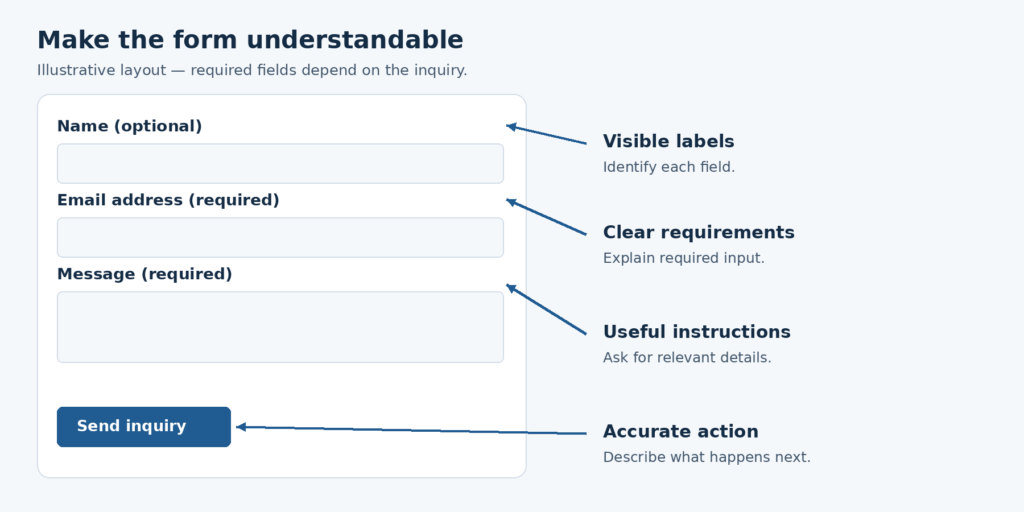
Each field needs an identifiable label that explains what information belongs there.
Check that labels remain understandable while visitors enter information. A hint inside an empty field should not be the only way to identify that field.
W3C’s labeling guidance explains how labels should be associated with form controls so their purpose can be identified, including by assistive technology.
Review:
- Whether required and optional fields are identified clearly.
- Whether instructions appear before the visitor needs them.
- Whether unfamiliar terms are explained.
- Whether any length, format or upload restrictions are visible.
- Whether a symbol such as an asterisk has an explanation.
- Whether the submit button describes the action.
“Send inquiry” or “Request a quote” may describe the action more clearly than a generic button label, depending on the form’s purpose.
Avoid presenting an inquiry as a completed booking, approved application or confirmed purchase when submission only starts a conversation.
W3C’s form-instruction guidance provides examples of identifying required fields and supplying instructions associated with individual controls.
4. Test Mobile and Accessible Use
Review the actual published form rather than relying on the editor preview.
Complete the form on a phone
Use a real phone where practical. Check whether:
- Labels, instructions and errors remain readable.
- Fields fit the available width.
- The on-screen keyboard obscures important controls.
- Menus, banners or other elements obstruct the form.
- The message field remains usable for a longer inquiry.
- The submit button can be reached and activated.
- Increasing text size leaves the form usable.
- Switching between fields preserves the information entered.
Record the device and browser used. One successful test does not establish that every device and browser combination works.
Complete the form with a keyboard
Without using a mouse, move through the form and check that:
- Interactive controls can be reached.
- The current focus is visible.
- The sequence follows the form’s reading order.
- Select menus and other custom controls can be operated.
- The submit button works.
- Errors can be reached and corrected.
- No component traps the visitor.
For screen-reader testing, check that labels, required status, instructions, errors and submission feedback are conveyed meaningfully.
These checks help identify practical problems. They do not constitute a complete accessibility assessment or establish legal compliance.
5. Check Validation and Error Recovery
Validation checks whether submitted information meets the form’s requirements. It should help visitors correct mistakes without creating unnecessary restrictions.
Test an empty required field, an incomplete email address, an entry exceeding a documented limit and any other condition relevant to the form.
For names, messages and other free-text fields, test ordinary punctuation and legitimate variations. Review whether restrictions reject information the business should be able to accept.
W3C’s input-validation guidance recommends accommodating appropriate input formats and providing accessible feedback.
Explain the problem and the correction
An error message should identify the affected field and explain what the visitor needs to change.
“Enter an email address” gives clearer direction than “Invalid input” when the field is empty. If a particular format is required, explain it rather than expecting the visitor to guess.
Check that:
- Errors are associated with the relevant fields.
- Color is not the only indication of a problem.
- Previously entered valid information remains available where appropriate.
- Correcting one field does not unexpectedly clear another.
- The form can be resubmitted after correction.
- A submission failure does not display a success message.
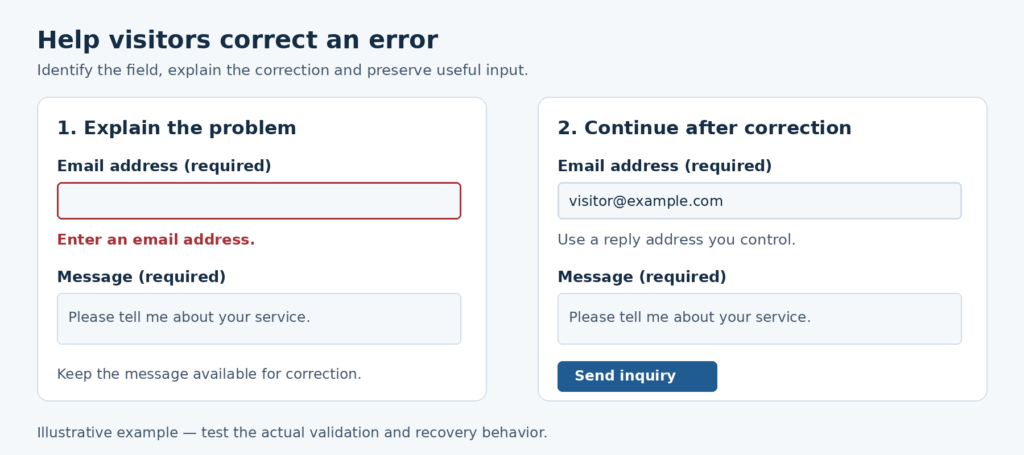
W3C’s notification guidance supports clear error explanations, correction instructions and feedback about successful completion.
Verify validation on the server
Browser-side checks are useful for immediate feedback, but they are not a security boundary. OWASP explains that client-side validation can be bypassed and that submitted data must also be validated on the server.
Ask the developer to verify server-side input validation. Do not treat a form that rejects an invalid entry in the browser as proof that its underlying processing is secure.
6. Follow Submission Through to Actual Delivery
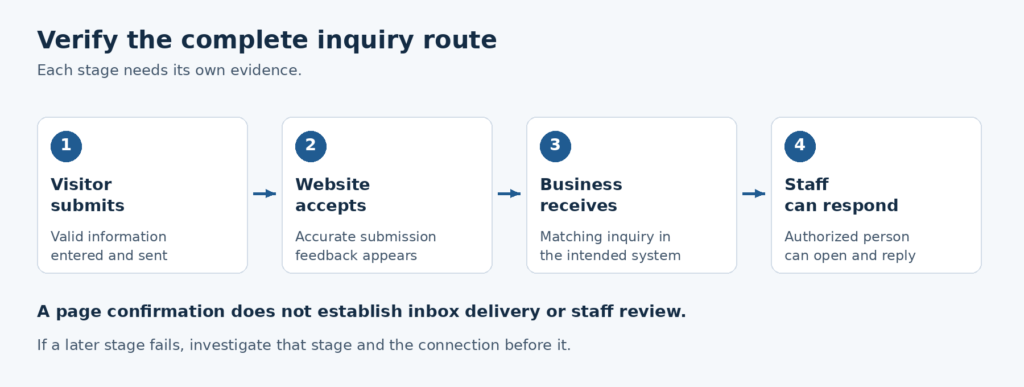
A visible confirmation is one stage of the process. The review should establish what happened after the website accepted the inquiry.
Use a test address you control and a clear marker in the message, such as “Website form test.” Coordinate the test with the receiving team so it is not mistaken for a customer request.
Verify the visitor’s confirmation
After a valid submission, check that the page:
- Clearly states the result.
- Gives an appropriate next step.
- Does not promise a response time the team has not agreed.
- Does not unnecessarily display personal information.
- Remains understandable if no confirmation email is received.
The message should describe the stage actually reached. An acknowledgment that the website accepted a request should not imply that staff have already reviewed it.
If an automatic email is part of the workflow, check its arrival, wording and reply behavior separately.
Verify the business destination
Locate the same test inquiry in the intended inbox or customer relationship management system, commonly called a CRM.
Check:
- Whether it arrived at the correct destination.
- Whether the submitted fields are complete and readable.
- Whether service selections map to the correct team.
- Whether permitted attachments are available.
- Whether the responsible staff can access the record.
- Whether replying reaches the test sender.
- Whether additional routing or automation behaves as intended.
For WordPress, the official wp_mail() documentation explicitly distinguishes successful processing from confirmed receipt by the recipient. This is why a successful sending result should not replace an inbox check.
If the inquiry is missing, investigate the processing, sending service, recipient configuration and destination before repeatedly changing the visible form.
Check partial failures and duplicate submissions
Ask what happens when the website accepts an inquiry but a downstream service fails.
Determine whether the system retains an appropriate record, reports a failure, retries delivery or alerts someone. Do not assume that the form stores submissions: verify the actual configuration.
Test repeated activation of the submit button in an approved test setting. Check for duplicate records, duplicate notifications and a button that remains disabled after an error.
Where a failure test could disrupt real inquiries, use a controlled environment. Confirm normal production behavior separately after changes are released.
7. Review Privacy, Uploads and Spam Controls
Trace where form information goes: the website, email service, inbox, CRM, logs and any other connected systems.
The FTC’s business guidance on protecting personal information recommends understanding this flow, limiting collection to legitimate needs and restricting access appropriately.
For the form, confirm:
- The information collected matches its purpose.
- Relevant privacy information is easy to find.
- Submission records are accessible only to appropriate staff.
- Retention and deletion responsibilities are defined.
- Test records are removed according to the agreed process.
- A general inquiry field is not used to request passwords, payment-card details or other information it was not designed to handle.
A privacy-policy link or checkbox does not, by itself, establish that the whole workflow meets applicable obligations. The actual collection and handling practices need review.
Add upload checks only when files are accepted
If attachments are necessary, publish the actual accepted file types and size limits.
Test an allowed file, a disallowed file and an oversized file using harmless samples. Check the resulting message, storage location and staff access.
Ask the developer to verify file validation and storage controls. OWASP’s file-upload guidance recommends multiple protections; an extension filter alone is not sufficient.
Do not enable uploads simply because the form software offers the feature.
Test spam protection from the visitor’s perspective
Check whether legitimate visitors can complete the form when spam controls are active.
If a challenge, hidden-field check or submission limit is used, review failed attempts and the recovery route. The responsible developer should assess the control’s technical effectiveness.
W3C documents accessibility limitations of CAPTCHA. If a challenge prevents completion, provide an appropriate alternative contact route and review whether the protection can be improved.
8. Measure the Correct Action and Assign Follow-Up
Keep these stages distinct:
- A visitor opens the form.
- A visitor activates the submit button.
- The website accepts a valid submission.
- The inquiry reaches the business destination.
- Staff review and respond.
- The inquiry meets the business’s qualification criteria.
If a report labels something a “completed inquiry,” document which stage triggers that record. A button click should not silently stand in for successful submission.
Where tracking is implemented, test whether:
- Invalid submissions create a completion event.
- One successful submission creates more than one event.
- Refreshing a confirmation page creates another completion.
- Different forms can be distinguished appropriately.
- Personal field contents appear in event data or page URLs.
Keep names, email addresses and message contents out of general analytics events. For sites using Google Analytics, its guidance on personally identifiable information addresses information entered in form fields and other collection paths.
Tracking is supporting evidence. Verify receipt in the business system as well.
Finally, confirm who handles the inquiry after delivery, who covers absences and who investigates a failed route. Test that the responsible person can open the record and reply—not merely that an account exists.
9. Use a Repeatable Contact Form Test Record
Record the form URL, environment, date, device, browser and tester. For each scenario, write the expected result before testing.
Use Pass, Fail, Not verified or Not applicable. A result should be marked Pass only when the expected behavior was observed.
| Test scenario | Evidence to record |
|---|---|
| Valid inquiry | Confirmation shown and matching inquiry received |
| Required field omitted | Clear error; no false success |
| Invalid email entry | Useful correction message |
| Legitimate input variations | Relevant names, punctuation and formats accepted |
| Mobile completion | Fields, keyboard, errors and button remain usable |
| Keyboard completion | Controls reachable; focus visible; no trap |
| Screen-reader review | Labels, instructions and feedback conveyed |
| Repeated submission | Duplicate behavior understood and handled appropriately |
| Each routing option | Inquiry reaches the assigned destination |
| Staff reply | Response reaches the controlled test address |
| Automatic acknowledgment, if used | Correct email arrives with accurate wording |
| Attachment tests, if used | Allowed, disallowed and oversized files handled correctly |
| Downstream failure | Retention, alerting or failure behavior verified |
| Tracking, if used | Event matches the intended stage without personal field contents |
For a failed test, add the affected function, responsible person, next action and verification result after the fix.
Prioritize problems by their effect. A form that loses inquiries, exposes information or prevents completion needs attention before a cosmetic change. For other issues, document the practical impact rather than assigning severity from appearance alone.
10. Retest After Changes That Affect the Form
Repeat the relevant tests after changes to:
- Form fields, validation or routing.
- The page layout, theme or form software.
- Hosting or the sending service.
- Inbox permissions or recipient addresses.
- CRM connections and automation.
- Spam controls or file-upload settings.
- Submission tracking.
Include recurring form tests in the website maintenance checklist, with a frequency based on the importance of the inquiry route and how often its dependencies change.
During a provider transition, include form configuration, delivery destinations, staff access and unresolved defects in the website handover checklist. Confirm that the receiving team can repeat the tests.
Approve the Complete Inquiry Route
A contact form is ready for its intended role when the business has evidence that visitors can complete it, recover from mistakes and receive accurate feedback—and that the resulting inquiry reaches staff who can act on it.
Keep the test record alongside the form’s configuration and ownership details. When an inquiry route fails, that record gives the team a defined behavior to restore and a practical way to verify the correction.